
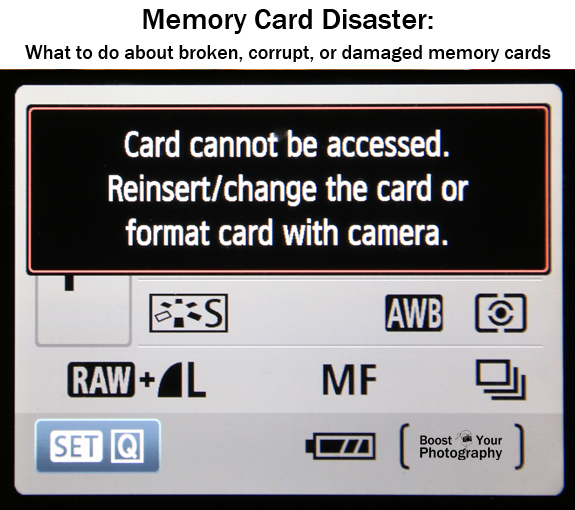
Memory cards are fallible, and, like it or not, some times memory card disaster strikes! The first post in this series introduced tips for how to Avoid Memory Card Disaster. This post will walk you through what to do if your memory card fails.
If you have accidentally deleted files or reformatted and lost files, you do not want to take any further actions with that card. Deleted or reformatted files can often be recovered, but if you start saving new files, those files can "save over" the originals, rendering them lost forever. (My sister lost several hours of wedding photographs when her photographer mistakenly reformatted and then reused one of the memory cards from her wedding before downloading those files to her computer. Yikes.)
If you realize that you have deleted files you still want, it is likely that you will be able to recover those files using a data recovery software program. Scroll down to the data recovery section to read more.

If your computer will recognize your memory card when you plug it in (either directly or with a memory card reader), then you can attempt to run data recovery software on your card.
Some highly recommended programs are available free online, including PhotoRec and Recuva from Piriform. PhotoRec is a completely free, open-source software program. Recuva has two different versions: a fully functional free version and a professional version that offers tech support and upgrades (currently $25 USD).
SanDisk has its own software called Rescue Pro and Rescue Pro Deluxe (click here for the PC version, and click here for the Mac version). One of the benefits of this program is that there is a free trial version you can run to let you see whether your files are recoverable. Only after you know that the program will work do you have to pay for it (currently $40 USD standard or $60 deluxe for a year's subscription). You can read a fuller description (with screen shots) of how the software works in the article How to Recover Lost Files from a Memory Card.
But alas, there are still some memory card problems that cannot be overcome by photo recovery software. This last section will explore your options for what to do when data recovery software fails to solve your problem.

The problem with this solution is that it is a very labor intensive, and therefore expensive, proposition. There are many different companies available that offer these services, or you can ask your local camera company for recommendations. The manufacturer of your memory card may also make recommendations. SanDisk, for example, refers users to LC Technology, whose prices start around $150 and quickly escalate. The local company recommended by my camera store started around $250 for data recovery from a flash drive.
Read the fine print. Some companies will only charge you if they are successful at retrieving your date files, while others will charge you regardless. I highly recommend choosing a company that will not charge you if the process does not work, otherwise you could be out hundreds of dollars and still not get your digital files recovered.
If you accidentally delete files or reformat, do not keep using that card, and run data recovery software on it as soon as possible. If your memory card becomes corrupt, try running data recovery software to see if your files are recoverable. If your memory card becomes unreadable and is not recognized by your camera or computer, then you have to decide whether those deleted photographs are worth paying an expert or specialist to disassemble your card.
Let us hope that you never need the advice within the post, but if you do, it is here as a resource to help you in hopefully successfully recovering your files.

Boost Your Photography: Learn Your DSLR is available from Amazon. Get the most out of your camera with practical advice about the technical and creative aspects of DSLR photography that will have you taking beautiful pictures right away.
Memory Cards and Human Error
Briefly I wanted to address a few memory card mistakes that are caused by operator error, as in what to do if you accidentally deleted files from your memory card or if you accidentally reformatted a memory card before backing up the files.
Do not take any more pictures with that memory card.
If you have accidentally deleted files or reformatted and lost files, you do not want to take any further actions with that card. Deleted or reformatted files can often be recovered, but if you start saving new files, those files can "save over" the originals, rendering them lost forever. (My sister lost several hours of wedding photographs when her photographer mistakenly reformatted and then reused one of the memory cards from her wedding before downloading those files to her computer. Yikes.)
If you realize that you have deleted files you still want, it is likely that you will be able to recover those files using a data recovery software program. Scroll down to the data recovery section to read more.
Corrupt Memory Cards
A corrupt memory card is one that can still be read by your camera or computer but is either missing files or returning an error message. There are several thing different things that can cause a memory card to become corrupt. (Avoid doing any of the following actions.)- Deleting files manually or using a computer (rather than reformatting in camera) can clog up a memory card
- Magnets and static electricity (sparks or shocks) can mess up the electrical inner workings of your memory card
- Removing your memory card while your camera is trying to write information to that card can cause it to become corrupt
- If your battery dies while your camera is in the middle of writing information to your memory card, it can cause your card to become corrupt or damaged.
If your computer will recognize your memory card when you plug it in (either directly or with a memory card reader), then you can attempt to run data recovery software on your card.
Data Recovery Software
There are many different data recovery software programs available, all of which claim to be able to resurrect your deleted photographs from accidental deletion or a corrupt memory card.Some highly recommended programs are available free online, including PhotoRec and Recuva from Piriform. PhotoRec is a completely free, open-source software program. Recuva has two different versions: a fully functional free version and a professional version that offers tech support and upgrades (currently $25 USD).
SanDisk has its own software called Rescue Pro and Rescue Pro Deluxe (click here for the PC version, and click here for the Mac version). One of the benefits of this program is that there is a free trial version you can run to let you see whether your files are recoverable. Only after you know that the program will work do you have to pay for it (currently $40 USD standard or $60 deluxe for a year's subscription). You can read a fuller description (with screen shots) of how the software works in the article How to Recover Lost Files from a Memory Card.

But alas, there are still some memory card problems that cannot be overcome by photo recovery software. This last section will explore your options for what to do when data recovery software fails to solve your problem.
Damaged or Otherwise Unreadable Memory Cards
Unreadable memory cards are a significantly bigger problem than a corrupt card. If your camera and computer stop recognizing your memory card, then you will be unable to run any of the recovery software programs mentioned above. The only solution for an unreadable memory card is to send it off to a data recovery specialist who will physically disassemble your card and try to access the memory stored within it.The problem with this solution is that it is a very labor intensive, and therefore expensive, proposition. There are many different companies available that offer these services, or you can ask your local camera company for recommendations. The manufacturer of your memory card may also make recommendations. SanDisk, for example, refers users to LC Technology, whose prices start around $150 and quickly escalate. The local company recommended by my camera store started around $250 for data recovery from a flash drive.
Read the fine print. Some companies will only charge you if they are successful at retrieving your date files, while others will charge you regardless. I highly recommend choosing a company that will not charge you if the process does not work, otherwise you could be out hundreds of dollars and still not get your digital files recovered.
Summary: Troubleshooting Memory Card Problems
There are many actions that can cause problems with your memory cards. Eventually, like most technology these days, they may just wear out. Avoid memory card disaster by caring for them safely and by consistently backing up your photographs using multiple, redundant methods.If you accidentally delete files or reformat, do not keep using that card, and run data recovery software on it as soon as possible. If your memory card becomes corrupt, try running data recovery software to see if your files are recoverable. If your memory card becomes unreadable and is not recognized by your camera or computer, then you have to decide whether those deleted photographs are worth paying an expert or specialist to disassemble your card.
Let us hope that you never need the advice within the post, but if you do, it is here as a resource to help you in hopefully successfully recovering your files.
Boost Your Photography: Learn Your DSLR is available from Amazon. Get the most out of your camera with practical advice about the technical and creative aspects of DSLR photography that will have you taking beautiful pictures right away.


